Incorporate basic animations to bring your page to life. As this a getting started guide we will not cover right now all of the virtually endless animation capabilities but only review how to use the basic animation and integrations settings. Future guides will review animation by animation with examples that can be used to copy from or just to help your imagination get a kick start.
To start animating select an element you would like to animate. Go to the right hand toolbar and click on animation. Select basic animation on the top. You will see that you have the following options to work with.
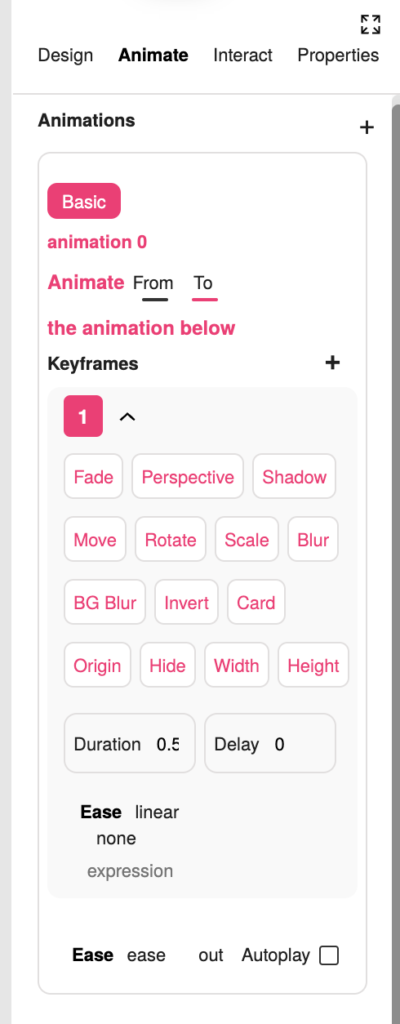
Animate: From and To – select if the current state of the element should be the starting point of the animation or the ending point of the animation.
Keyframes: Here you can select the type of the animation that will occur if the item is fade in or out, scale to look bigger, etc. You can always select more than one animation. For instance you can have an element move and fade away.
With the duration and delay you can configure how long the animation will last as well as when it will start. Immediately, wait for 1,2,3 seconds, your choice.
In the ease row you can configure the logic of how the animation will start as well if it will autoplay or ease in and out or just to one of the flows.
Have fun! Play with it! see what works best
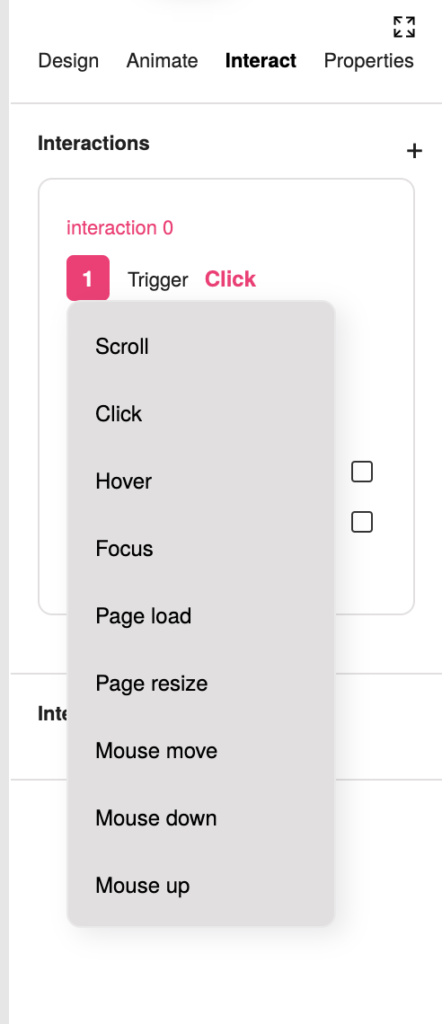
Lets move on to the interactions. Interactions are “activators” for the animations.
If you want the animation to happen you need to trigger it somehow.
Let’s take a simple example of a “click” trigger.
The animation will play when we click on something.
From the Step 1, under trigger we will choose “click”.

Step 2 will allow you to chose the element you would like the interaction to run on. You can leave it on the current element or chose a different one using the selector tool.
In step 3 we will choose the animation that we would like to run as we have defined that already.
You can also select if there should be a yoyo affect, meaning to have the animation run forwards and then backwards, run reversed or set the loop duration in seconds.
You can set multiple interactions to any animation as well as the same interaction to multiple elements or groups.


